Galaxy Tab S7+ Review: Jack of All Tabs

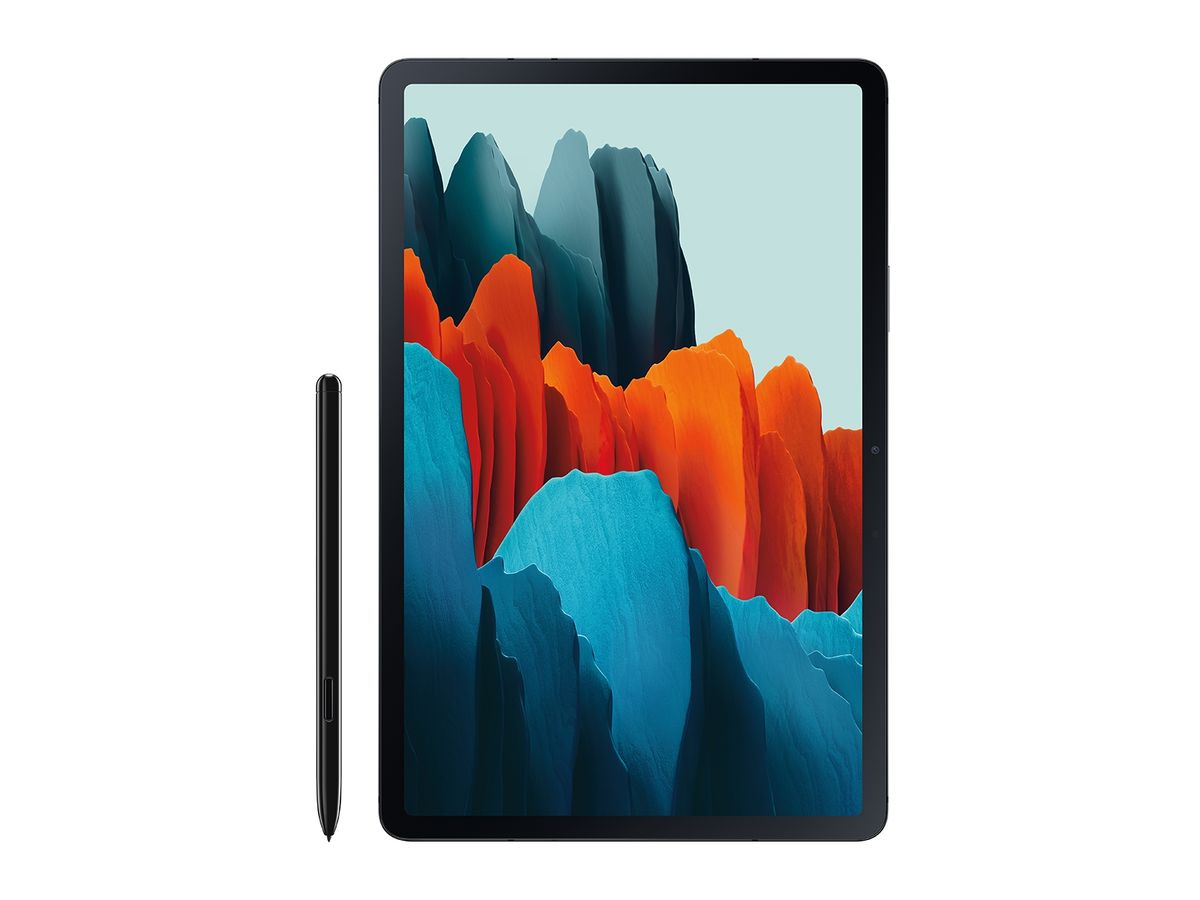
The Samsung Galaxy Tab S7+ is a productivity and creative powerhouse– full stop. Anything you throw at the device it can handle, thanks to top of the line internals, a gorgeous Super AMOLED screen, along with an included S-Pen operating at a ridiculously low latency for good measure.
The S7+ has enhanced my personal workflow tremendously, much of it due to the strength of the S-Pen and how naturally I work with a pen in hand.
I can’t draw to save my life, but I can whip up social graphics in Adobe Spark with greater efficiency with the S-Pen than I can using a mouse or my grimy fingers, swiping all over the beautiful screen like a toddler. The same is true when I hook the tablet up to my PC and use it as a second monitor (using a great app called SuperDisplay), effectively turning it into a Wacom drawing tablet to create podcast and video thumbnails in Photoshop and Illustrator, as well as getting precise work down in InDesign.
And while the S-Pen’s latency is ludicrously low (Samsung claims 9ms response times) I do vastly prefer the writing experience on an e-ink device like the Remarkable. In comparison, the S-Pen and S7+ screen, while very responsive and accurate, feels far too slippery coming from extended use of the tactile, textured Remarkable pen and screen. It’s a closer experience to writing on a whiteboard than writing in a notebook. That might not be a bad thing for everyone, but in my use cases, I prefer the S-Pen for writing quick notes rather than extended writing sessions like I can accomplish with the Remarkable.
I have considered getting a matte screen protector for the S7+, but this will apparently have several drawbacks I don’t feel will be worth it. One, it will diminish the stunning AMOLED display. And two, the texture will chew up the S-Pen’s rubber tip. While the tips are replaceable, the S7+ does not come with extras. For now a matte screen protector doesn’t seem like a viable solution to my tiny hangups with the writing feel.

Let’s talk about that screen, because it makes doing anything on the tablet even better. Not only is it a great color-accurate, vivid Super AMOLED panel, it has a refresh rate of 120hz. Everything is so smooth. Scrolling, browsing, and reading are all absolute pleasures thanks to the high refresh rate. Any games that support high or unlocked frame rates will run at 120fps as well and blow your mobile gamer mind.
The battery saving mode cuts the refresh rate in half to the “old” standard 60hz, and you can save as much as a day or more depending on your usage, but I can’t go back. I just can’t. 120hz looks too good.
Samsung is positioning the Galaxy Tab S7+ as a device that can do everything, even replace a laptop. I believe this is more possible than ever, although there are some caveats. The 12inch screen puts it in a similar realm to 13inch ultrabooks, and with the optional Bookcover Keyboard with its trackpad, the S7+ can essentially function as a 2 in 1 device. However, while the trackpad is nice to have while browsing, its complete lack of settings and customizability , combined with either Android or Samsung’s habit of treating mouse input like touch input, the trackpad isn’t nearly as good of an experience as it could be.
For instance, you cannot whatsoever change the scrolling direction, and by default, it’s inverted (as in swipe down to scroll up and vice versa). Not even allowing the option to switch seems ridiculous, as this is a basic laptop functionality than even Chromebooks, Android tablet’s closest parallel, possess.

Throw in apps, like YouTube for example, treating the pointer like touch input, meaning that swiping away minimized videos follows the direction you swipe towards, there is a disconnect. It’s a jarring experience to (in my mind) reverse scroll through my subscription feed and then swipe UI elements away in the “proper” orientation which would be in the opposite direction of how I was just scrolling, all using the same input device. And this is just in an app as inconsequential as YouTube.
The keyboard cover also comes with another small negative for me: it increases the overall footprint of the S7+ considerably. Again, this is highly personal, but coming from the more-or-less compact 10.5 inch Tab S5e and its trackpad-less keyboard cover, the 12inch S7+ and its full size keyboard/pointer combo takes up much more real estate. So much more in fact, that I have a hard time using it comfortably on my lap, dashing the whole “laptop” replacement part of the equation relatively quickly.

Luckily, I appreciate the cover’s versatility. Unlike the single piece cover Samsung utilized for the S5e, the keyboard cover for the S7+ is in two pieces for each side of the tablet. So when I’m not using the keyboard, I simply undock the S7+ from the magnetized attachment. This minimizes the bulk and heft that would otherwise be forced upon you when you fold the keyboard behind the tablet. For me, that configuration is simply too unwieldy to use.
I’m a big fan of the other half of the keyboard cover. It snaps solely to the back of the tablet and has a convenient pocket for the S-Pen that’s attached to the rear strip below the camera array for charging. The pocket flips out and makes grabbing the S-Pen in a pinch even easier. It also makes locating that rear magnet strip for the pen a snap as well.
On the plus side, the keyboard itself has a decent amount of travel for its size, has arrow keys, command and function buttons, and a shockingly low amount of keyboard wiggle. Samsung also mercifully went with normal square shaped keycaps instead of the weird round ones the S5e cover had. It’s a solid keyboard.
All in all, I’d say the keyboard cover is pretty situational. If you’re attempting to have the Tab S7+ replace a computer then it’s probably necessary. There are just a lot of drawbacks that come down to preference. The price is also pretty ludicrous. $220 is steep, especially when the S7+ itself ain’t cheap. Without a pre-order discount, I would have most likely skipped it and went with the regular book cover to protect the S7+ and hold the S-Pen.
Back to the S-Pen itself, its design is simple, and in the hand it feels light, like a more premium ballpoint pen. It’s effortless to pick up the pen and glide across the screen. It’s also quite precise, and you can see the Wacom EMR technology in action. Bring the S0pen close to the display and a small circular cursor will appear where the pen is about to touch.
Most often, I find myself wanting to use the S-pen as the main method of interacting with the Tab S7+ over both normal touch and the trackpad because of this precision. As mentioned, I’m no artist, but I can see where those gifted in the visual arts will love using the S-Pen for digital illustrations. Its accuracy, (insert here) degrees of pressure sensitivity, tilt recognition, and familiar, easy to handle form factor convey to me that it will excel in the hands of artists that can to more than stick figures. It is also such a boon that every S7 comes with the S-Pen out of the box, no strings attached. It feels like the tablet would be irrevocably incomplete without the pen.
It’s a good thing then that the Galaxy Tab S7+ has the power to handle desktop class illustration applications. Coming pre-installed is Clip Studio Paint, a professional-grade drawing app often used for comics in addition to illustrations. It is the full program, not some dinky mobile toy (I’m looking firmly at you here, Adobe). And while it’s a subscription-based app, Tab S7+ users get a few months free to try it out without spending.

Hopefully, the addition of Clip Studio will show developers that Android is a viable platform to port desktop-class creative applications, provided the devices have the specs to run them. The iPad has had its own full version of Photoshop, and it’s now getting Illustrator as well. It’s time, Adobe, to take Android seriously. Three different bad Photoshop mobile apps doesn’t cut it. We pay you more than enough for Creative Cloud.
Equipped with an 8-core Snapdragon 865+ processor, 8 gigabytes of RAM, and as much as 512 gigs of storage, the Galaxy Tab S7+ can handle anything you throw at it. Heavy gamestreaming from Xbox Gamepass or Steamlink? Handled. Console-quality games like Genshin Impact? You can crank up those quality settings.
All that horsepower means productivity remains smooth, meaning that the Galaxy Tab S7+ can be your “anything” device. Laptop replacement, digital notebook, drawing tablet. Chances are, it has the ability to slide into your workflow. The Tab S7+ is a jack of all trades, and in Android tablets, is in a class all its own.