How to Remove DRM and Convert Any Ebook
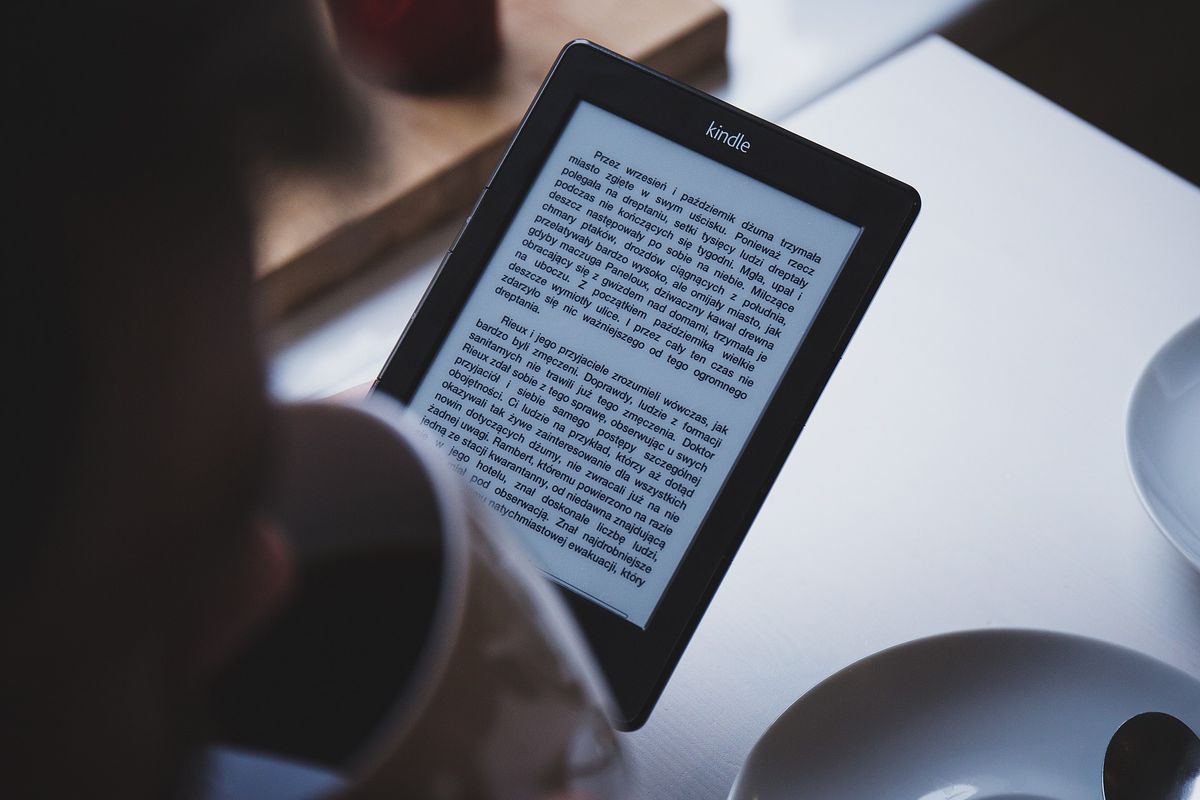
Ebooks are great. In so many ways, they’ve made reading a bit more portable and convenient, while also preserving the medium in the digital age.
But different digital storefronts sell different ebook filetypes and different forms of DRM (Digital Rights Management). DRM’s goal is to curb piracy, and that’s a worthy premise. But DRM also forces consumers to be locked into one ecosystem, device, or app. Or otherwise switch between them. Barnes & Noble only wants you to use the Nook store. Google Play wants you to use theirs. We could go on and on and on.
If you want to be able to have a backup library you can control, or the freedom to be able to buy ebooks on different platforms and read them in one place, you have to crack DRM. And you’ll have to convert ebook files.
It’s a bit complicated to set up, but once everything’s in place, your legally purchased ebooks will be as flexible as they should be. Here’s a comprehensive guide to do just that.
First Thing’s First
- No matter where you’re getting your books from, or what format you need them in, go ahead and download and install Calibre. Calibre is going to do the bulk of your converting. It’s also a great digital library management tool in general. It’s how I convert, organize, and then transfer books over to my Kindle, all painlessly.
- You’ll also need to go and grab this De-DRM plugin for Calibre. Once downloaded, go to Calibre’s preferences, enter the plugins menu under the Advanced tab. Click “Load plugin from file” in the lower right corner, and open the De-DRM .zip file. Then make sure it’s enabled in the plugin menu.

If you won’t be using Nook ebooks, go ahead and skip this step. Highlight De-DRM and click “Customize plugin.” Here you need to log in with your Barnes & Noble credentials. This gives the plugin a key it needs to break the DRM. It is only stored on your computer, not on some server you have no control over.
Converting Nook Books
- In order to have actual access to Nook ebook files, you’ll need to download the Nook app for PC.
- When you log in to Nook and download your purchased books, they will be placed in a folder in your Documents called “My Barnes & Noble Ebooks.” UPDATE: Nook epub files are now located at C:\Users\username\AppData\Local\Packages and then the “LocalState” folder.
- Over in Calibre, add the books to your library by navigating to that B&N folder after clicking the button in the upper left-hand corner marked “Add Books.”

- Once in Calibre, the DRM should be stripped thanks to the De-DRM plugin and you’ll be able to convert those Nook .epubs to whatever formats you need using Calibre’s Convert Books tool.
- Highlight the book(s) you need to convert and hit the Convert Books tool. You generally won’t need to mess around with the extensive and intimidating settings here.
- Focus on the upper right-hand corner labelled “Output Format.” Here’s where you select the file-type you need.
- Select the file you need, then hit the green OK button at the bottom and let Calibre handle the rest. You’re ready to read your Nook books in any way you want.
- Nook books are .epubs, the most common ebook format. However, Kindles will not read them. For Kindles, convert into .azw3 (Amazon’s ebook format) or the much more open .mobi.
Google Play Books
- Google Play books are also .epubs, but the process for getting the files is a bit different. You’ll need to go get Adobe Digital Editions. The site looks a little busted, but it’s an official Adobe page.
- But this is crucial: only download and use version 2.0. Do not use or authenticate/sign in with any other version. You won’t be able to convert ebooks using Digital Editions if you have ever signed in to a newer version. Do not update digital editions from 2.0, turn off auto-update in the 2.0 preferences as well.
- When you’re sure you have installed Adobe Digital Editions 2.0, you’ll need to sign in with an Adobe account, or make one if you don’t already have one.
- With Digital Editions all set, go to Google Play Books on your browser, then My Books. Download the books you’ve purchased.
- This will give you .acsm files. Open those files and Digital Editions will download your .epubs. They’re stored in a folder called “My Digital Editions” in your Documents.
- Add your books to Calibre and convert as needed. Voila. Unchained books.
- This method will work for any other digital stores that use Digital Editions as DRM.
Kindle Books
- Kindle ebooks are a different beast, as Amazon likes to use proprietary formats to protect their books. Chances are, if you recently purchased Kindle books, they will be in the .kfx format. In order for Calibre to read these, download and install the KFX Input plugin the same way you installed De-DRM.
- There are a couple ways to access Kindle book files:
- If you have a Kindle device, we’ll turn back to the De-DRM plugin menu.
- Go back to the Customize Plugin option, just as we did to authenticate Barnes & Noble.
- Next click Eink Kindle Ebooks. Here you’ll provide your Kindle’s serial number. You can find this on the device by going to the Settings-Device Options-Device Info.

- From here you can plug your Kindle into your computer with a micro-USB cable.
- You can now add books from the device into Calibre using Add Books.
- De-DRM will do its job, and then you can convert if needed. Your Kindle specific books now have a backup solution you can control.
- No Kindle, no problem. If you’re a user of the free Kindle App, you can use Kindle for PC. You’ll be able to find your book files in a folder called My Kindle Content in your Documents.
- Add them to Calibre and poof, no more DRM. Convert as needed.
This guide provides all the steps necessary to remove DRM and convert any ebook for three of the most well-known ebook retailers. For others, the general principles remain the same. Add the books to Calibre and the De-DRM plugin does the heavy lifting. Unfortunately, formats like iBooks (Recently rebranded to Apple Books) cannot be cracked and as such, remain locked from being able to be backed up and converted.
I hope this guide has helped to give you back control over your purchases. And please, get your books legally. Writers and publishers work hard to bring stories to you, give them their due. Looking for something to read? Check out my “What I Read Last Month” series of mini-reviews.