Razer Blade 14 Review: The Windows MacBook

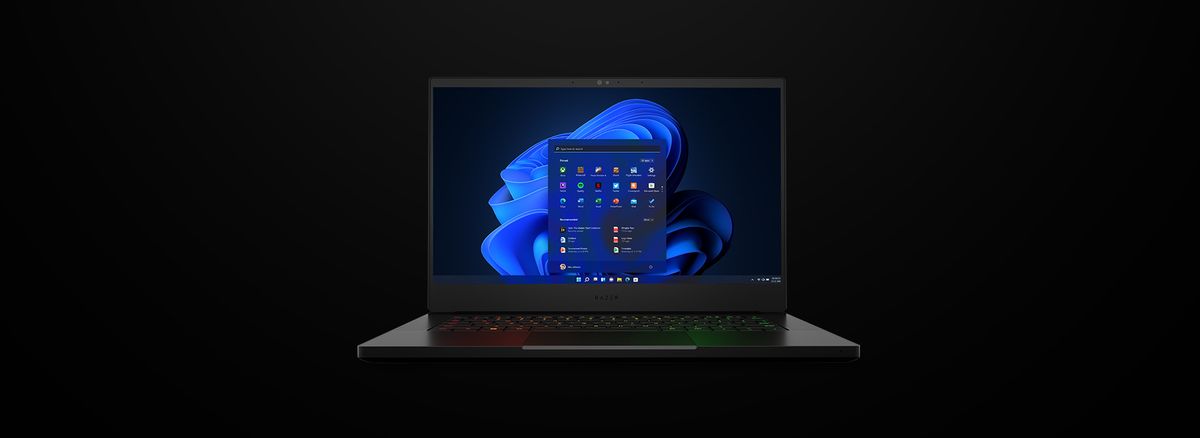
Note: This review was conducted using the 2021 model of the Razer Blade 14. Most of this review should still apply to the 2022 Blade 14. The 2022 model will have an improved processor/GPU options and therefore higher performance metrics. Otherwise it is using the same chassis and screen options.
For my next device, I wanted something truly portable, with the world beginning to open up again, and with my first travel plans in over two years impending. I wanted to travel light. Suddenly the prospect of trudging my 15 inch laptop starting to show its age felt like a burden.
The Razer Blade 14 solves that issue, and does so without sacrificing a drop of productivity performance all while being a gaming powerhouse. The drawbacks are few and far between. So far, I’m quite happy with my decision to go Razer.
All The Small Things
The Blade 14 is small. Really small. Razer says it is just 0.66 inches (16.8mm) thick, and they managed to cram a 14 inch display into the chassis of what would normally be a 13 inch notebook. The 13 inch laptop sleeve I bought fits the Blade 14 as if it was made with it in mind.
The blade is also fairly light, but feels dense as well, which isn’t a total surprise when you factor in the metallic vapor chamber, dual intake fan cooling system Razer packed in. There’s a solid heft to the 14 when you pick it up with one hand.
Design
Aside from the prominent Razer logo embedded on the back of the screen, and the RGB-enabled keys, the Razer Blade 14 looks an awful lot like a Macbook at a glance. In fact, the last 13 inch laptop I owned was an old Core 2 Duo Macbook that served me well for a long time, and the Blade 14 is evoking nostalgia for that device in all of the best ways. Except this thing can run circles around that 15 year old device, and keeps pace with the M1 Pro MacBooks you can pull off the shelf today.
The compact boxy aesthetic and minimalist, especially from a “gamer” OEM like Razer, is refreshing. There are no industrial angles or edgy corners. Aside from that light up logo on the back and those Chroma keys that can be tuned to any level of rainbow vomit you may or may not want, the Blade 14 is ultra thin, sleek, and doesn’t stand out. Even the keycaps, while RGB capable, do not have legends with an obnoxious font like so many gaudy gaming keyboards do.

Speaking of the keyboard, it feels good to use. For a laptop this size, there isn’t a whole lot of room for key travel, but the keys have a slight satisfying punch to them, and a bit of a spring feel after each stroke. This is probably most noticeable on the spacebar, as it is the largest key. There is no key wiggle, and while the layout might feel compact to some, it is comfortable for my fairly small hands. Backlight legends are clear on all of the letter and number keys, although there are some imperfections with the “enter” and “shift” keys. This is most notable when the RGB backlight is set to a lower brightness. It’s a small nitpick in what is otherwise a great laptop keyboard. I have no issues quickly getting up to speed and maintaining my momentum typing on it. All said, it’s tough to ask for anything better in a device this compact, and you would be hard pressed to find something that beats it in even larger devices.
The trackpad is spacious, accurate, and very responsive. It’s a joy to use and the best trackpad I’ve had since that 2006 MacBook. Razer truly couldn’t have fit a larger trackpad here if they tried, without moving the keyboard up against the hinge. The area of the trackpad is larger than what I had to work with on my Dell XPS 15 9550, a 15 inch laptop, and it performs better. It tracks every little stroke, and its pinch to zoom actually works, something I couldn’t say about that XPS 15. The precision drivers at work here are top notch.
If I have any complaint about the design or build quality, it is that the black anodized aluminum finish of the chassis is an absolute fingerprint magnet. It is unavoidable. Be prepared to wipe the Blade 14 down every so often. I even considered getting a black vinyl skin to replicate the look of the laptop, but cut down on the fingerprints and smudges, but I was worried that would impact cooling performance.
Pick and Choose
The Blade 14 comes in three flavors, all of which give you different internals and screen options. Unfortunately Razer does not give the option to mix and match components and screens. For example you cannot get a Blade 14 with a 3060 and 1440p, 165hz display.
Instead, the “base” Blade model starts with an NVIDIA GeForce RTX 3060 and a 1080p, 144hz screen for about $1,800. The middle Blade bumps up to an RTX 3070 and a 1440p, 165hz display for $2,200. The priciest Blade rounds out with an RTX 3080, 1440p 165hz screen for a whopping $2,800.
All three Blade 14s come with the excellent Ryzen 9 5900HX processor, 16gb of RAM, and 1tb NVME SSD storage. It would have been nice to see upgrade options for 32gb of RAM for future-proofing or for those who actually need that amount of memory. The justification is apparently space constraints. The RAM is soldered to the board and since space is so sparse with the compact nature of the Blade 14, there is simply not enough room.
This also means that user upgradable RAM is not an option. This is genuinely a shame, as user upgradability extends the lifespan of devices. Hopefully 16gb is enough to carry the Blade 14 far enough into the future.
The Blade 14 has one M.2 SSD slot, which is occupied by the 1tb drive out of the box. This is user-replaceable. However, again due to space constraints, only NVME SSDs with flash chips on one side will be able to fit in the slot. While it is nice that this is able to be swapped out, for instance if the drive fails or a user needs more storage, this constraint limits the models of drives a user could purchase and also the size of the drive able to fit in the Blade 14.
For me, I believe that the 3070 model is the sweet spot. It gives you the 1440p display, which looks great at this screen size and distance, and offers balanced gaming performance. The 1440p screen covers 100% of the DCI-P3 color space, meaning it is color-accurate and vibrant without being overly saturated. As long as you turn off the annoying color settings in the AMD Radeon software that were driving me insane until I found them. The screen is AMD Freesync and NVIDIA G-Sync compatible.
I don’t see the benefit of an additional $600 for the 3080. It is unlikely you will see the performance gains of that GPU in a laptop. But if you have the money to burn, by all means go for the beefy 3080. If you don’t need 1440p or want to save some cash, maybe you’re a light gamer for instance, the 3060 model makes more sense. You’re still getting a high refresh rate display at 144hz.
Power Without Compromise
Razer claims up to 12 hours of battery life on a single charge, and in my experience, I find that generous estimate to not be too far off the mark. Based on light usage (web browsing, video playback, word processing) at about medium screen brightness, I get anywhere from 7 to 11 hours of continuous use. The Blade 14 easily lasts a full day of lighter productivity and media consumption. Anything that doesn’t task the Nvidia GPU will basically sip power. The Ryzen 9 5900HX is incredibly power efficient on battery power.
Okay then, what about at full tilt? When you’re plugged in, what can this thing do? The 5900HX can boost up to 4.6ghz when needed on its 8 cores and 16 threads.
In the Cinebench R23 tests I ran, the 5900HX is competitive with desktop processors in both single and multi core tests. Against mobile competition, the Ryzen chip destroys Intel’s mobile processors in multi core workloads and stays competitive in single core against Intel’s 11th gen., Single is Intel’s strength and it shows.


Being able to compete with desktop chips in a benchmark boils down to the 5900HX’s ability to handle anything you could throw at it. It’s able to easily deal with most productivity, especially on the go, and can handle all of my workloads, which include audio editing and processing, graphics and photo work, and light video editing.
Desktop Gaming Without the Desk
It should come as no surprise that the Blade 14 can also play games at desktop quality as well. This will depend on which GPU you select of course. In my model I went with the 3070, and as mentioned above I believe it is the model that feels like the best option in terms of graphical performance and screen quality.
The Blade 14 is competitive with desktops in synthetic tests like 3DMark, but the real-world results are what speak to its actual performance. In truth, one of my main use cases for the Razer Blade 14 is to play Final Fantasy XIV away from home. Now, FFXIV is not the most demanding title as it’s an older game, and an MMO that needs to run on a wide range of hardware. However, I’m a raider, and for raiding I do need the game to run at high framerates, without any stutter or dips so I can best help my team at the most crucial of moments during a raid.
The Blade has my back. It can run FFXIV on the highest desktop preset at steady framerates in the 100s. Lowering the graphical settings to the highest laptop preset only increases the framerate. See these reference screenshots from Square Enix’s FFXIV Endwalker Benchmark:

Conclusion
The Razer Blade 14 is small enough to take absolutely anywhere, with a battery that can last all day and maybe even longer, while having enough power to maybe replace your gaming or workstation desktop. I firmly believe the 3070/1440p model is the sweet spot to go to, as that Blade 14 screen covers 100% of DCI-P3 at 165hz. It’s hard to find a better option in this class of computer. The Razer Tax is high, but the build quality and performance is right.