Review: The ReMarkable Paper Tablet and the Search for the Perfect Digital Notebook

If you read my post last week about reading (please do check if out if you haven’t) you’ll know that I’ve fallen deeply, madly in love with e-ink. I adore the reading experience on my Kindle Paperwhite, but I won’t rehash that here. A couple months back I was thinking about how great the e-ink reading experience is and how surely in 2018 e-ink tablet manufacturers have figured out writing too.
The Search
After some research I came away with bad news. There’s only about three devices attempting to be digital notebooks. Disappointing, but not totally surprising. Tablets in general are in rough shape. Aside from iPads, and then niche e-readers or super cheap devices like the Kindle Fire line, tablets just don’t sell anymore. Android OEMs have all but abandoned the market.
Then came more bad news. These digital notebooks are expensive. The cheapest option, from Chinese manufacturer Onyx, the Boox Note is $549. This tablet has the most features in the e-ink notebook space, sporting an older Android 6.0 OS and app support, along with support for a wide array of document and e-book formats. The Boox seems to be the device you’d want if you’d like your e-reader to do a lot more than read books. But if you’re looking for a writing experience than can truly replace pen and paper, I’d look away from the Note’s capacitive screen. Bear in mind I haven’t used the Boox Note.
Next up is the Sony Digital Paper Tablet, or DPT. The 10 inch model starts at $599, with the 13inch version at $699. For my purpose as a device solely focused on writing, the DPT felt like a better option. It’s supposed to be incredibly thin, lightweight, and responsive, though there are significant drawbacks. The software is lacking, with support for PDFs only. No other document formats. At all. There’s also an odd wrinkle where the tablet’s WiFi settings, like the ordinary task of connecting to a network, can only be changed on a computer while the device is connected via USB. The DPT, does support being able to view two documents in a side-by-side view. But the cost and slightly limited functionality made it a nonstarter for me.
The ReMarkable Paper Tablet
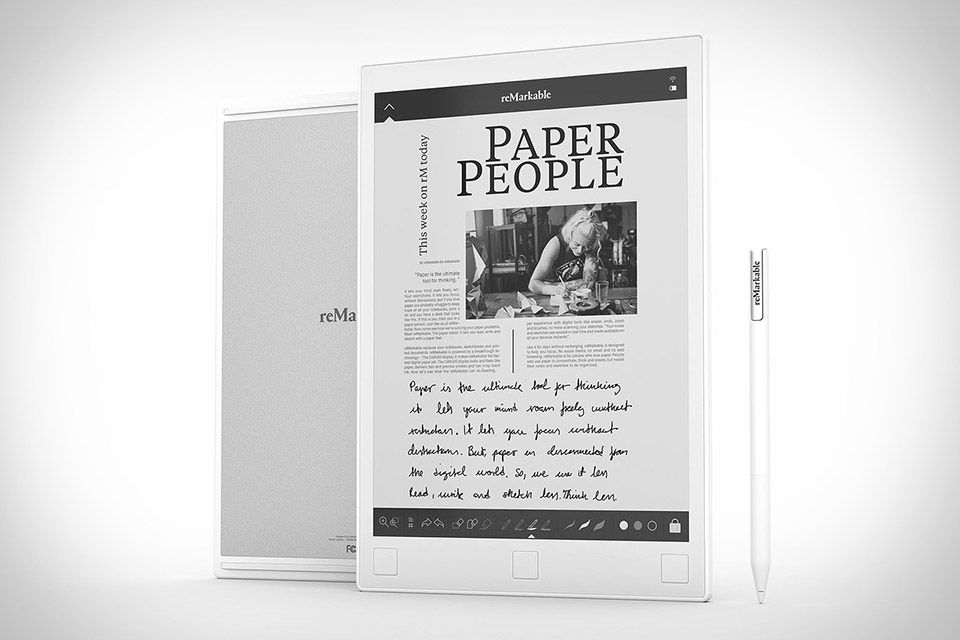
Last, but clearly not least based on the title of this post is the ReMarkable Paper Tablet. Retailing for $599, I picked up a very slightly used unit on eBay at a lower price. As with all new, sealed tablets it comes with the ReMarkable marker (get it?), 8 replacement marker tips, and a micro USB charging cable.
The tablet itself is made of white plastic. I do have some concern about the plastic eventually discoloring, but after a month’s plus of use so far there has been no degradation or other wear. I did pick up a carrying sleeve, one of a small handful of cases designed for the ReMarkable specifically. ReMarkable does sell a folio style case at an insane price of $79. The sleeve I picked up was $20, fits perfectly, and its memory foam gives me peace of mind. The back of the tablet features an aluminum panel that makes the tablet more rigid, sturdy, and gives it a premium feel. The back also has two strips of rubber at the top and bottom, so the device doesn’t slide on surfaces and the metal will not get scratched or scuffed. Despite the full 10.3 inch screen that sits flush with the bezels, the Remarkable is very light. I have small hands, and I have no issues holding the tablet with one hand, something I can’t always say for my older Nexus 9 8.9 inch Android tablet. It weighs less than a pound and the bezel, especially at the top and bottom, provide enough space to comfortably hold on. The Remarkable has three square buttons on the bottom bezel, for previous page, home, and next page. The top edge has a power button, the bottom is where the micro USB port is located. As expected of a tablet this light it is fairly thin as well.
Under the hood the ReMarkable is equipped with a 1ghz ARM A9 processor and 512mb of RAM. Tech enthusiasts might scoff at these paltry specs, but remember, this hardware is powering a 226 dpi monochrome screen partially made of E-Ink’s Carta display technology and a custom version of Linux Remarkable calls Codex. For what this device needs to do, it doesn’t need the modern 3+ gb of RAM found in color tablets that are processing video, constantly pulling services for notifications, can play games, and have plenty of apps running in the background.
Writing
On to the main feature. The ReMarkable is meant to replace all the notebooks and paper you’ll ever need. So how is the writing experience? Thankfully the ReMarkable completely nails the feel of writing on paper. And believe me, I had my reservations. Everything I read and saw about the tablet was that it excelled in the notetaking department, but I need a digital notebook that can handle a lot more writing than jotting down a to-do list. Not only that, but my handwriting is downright awful, essentially illegible to all but me. Picture the worst doctor’s prescription handwriting you’ve ever seen, then imagine a headless chicken was copying that doctor’s signature. It’s bad. It’s like esoteric demonic scribbling etched into a cave wall to summon Astaroth. My handwriting is also pretty small, so I worried about the Remarkable stylus and screen being able to pick up the strokes without smudging everything together like when I would use styli on conventional tablets.
The ReMarkable passes with flying colors. It’s able to perfectly follow my pen strokes and mimics my writing as if I took pen to paper. There is also no delay between strokes and their corresponding lines displaying on-screen. If you’re at all familiar with e-ink and its slower response time along with its need to refresh, you know how big of a deal that is. It borders on amazing. What’s more, the texture of the pen tip and the resistance of the screen actually replicates the feel of writing on paper. Writing on the ReMarkable is natural. It’s writing, not a simulation of writing, not a version of forming letters on a page. It’s the real thing, and it couldn’t feel better.

To take it a step further, the ReMarkable features several different tools, from a pencil to a paintbrush, each with their own distinct feels. The tools include different modes to take advantage of the pen and tablet’s ability to detect different levels of pressure and tilt sensitivity. What that translates to is the ability to take the pencil tool and shade using the edge of the marker tip just like an actual pencil. Press harder and your pencil lines and shadings will be darker. Same with the ball-point pen and marker tools. Re-tracing a line with the marker tool will make it a shade darker. The marker and paintbrush tools bleed, spreading ink on the screen like it’s seeping into an actual page. You can make a dot with the stylus and watch the ink expand outwards. There’s different sizes for the tools, and can work with black, gray, and white. I’m not a visual artist by any stretch of the imagination, so I can’t fully realize the potential of the versatility of these tools. In my case, I found the thinnest fineline pen, which approximates the smoothness of a gel or needle-tipped pen that’s perfect for utilizing my violent scrawlings efficiently. The highlighter also comes in handy when marking up PDFs or for emphasis on something I’m writing as well. You’re able to write on any PDF as if it were a printed page, and it feels the same as writing on blank documents that use any of the templates on the ReMarkable.

Artists should also be aware that the ReMarkable includes separate layers, much like Photoshop or Illustrator, and gives even more flexibility for your work. One of the coolest features basically works like Adobe’s transform tool. You can draw something, and then circle or box it. The transform tool will allow you to duplicate it, scale it bigger or smaller, rotate it, etc. This can even come in handy for text, like class notes where a phrase needs to be repeated over and over. There are many use cases. The zoom functionality will also be of use to artists, as you can essentially work in the smallest details of a drawing and then zoom back out, and that detail will be realized.
Mistakes happen, and the transition to digital makes burying those mistakes and pretending they never happened even easier. The ReMarkable has an erase tool with three different modes. One functions as you’d imagine, lightening the ink you drag the stylus over, then zapping those marks away when you lift the marker. The other mode allows you to circle and box ink like the transform tool and erases whatever you have enclosed in your shape. It only erases whatever you wrote or draw. You won’t suddenly lose typed text from a PDF for example. The third erase mode deletes the whole page, which I have unfortunately pressed more than once. I find the undo tool to be very useful for correcting typos and the like. Undo will also take back anything you may have erased accidentally. There is also a re-do button.
The Marker
The ReMarkable marker itself, is just about the dimensions of a regular ballpoint pen but with slightly more heft to it. It has a nice weighted feel, making it harder to lose than a standard Bic. Near the top it has a little hidden compartment to store an extra marker tip for emergencies. The ReMarkable comes with 8 tips, and additional packages of 8 are available for about $12. Replacement markers will run you $79. As I mentioned, I bought my device used, and therefore believe the tip that was in the marker was also used. That first tip lasted about a week, using the ReMarkable every day and subjecting it to the hard labor of my handwriting. Your mileage will certainly vary and I hope fresh tips will last me a longer period of time.

The marker itself needs no batteries or Bluetooth connection to function, using a proprietary EMR technology to produce writing. Another (cough) remarkable feat is the tablet’s palm rejection. My horrid writing style has my hand constantly on whatever surface I’m writing on. To the ReMarkable, it’s like the underside of my hand doesn’t exist. I have had no extraneous marks or smudging, or any glaring miss-taps that I didn’t intend. Yet the screen is also a multi-touch input. I can tap the different tools or other UI to navigate with a finger. The ReMarkable is good enough to have perfect palm rejection and allow you to use more than the stylus to get around the device. You also can’t just drag a finger on the screen to write. No fingerpainting.
There’s just one issue that mars the ReMarkable’s otherwise great record with input errors, and that’s with the square navigation buttons on the bottom bezel. The problem is that I’ve found it way too easy to hit the next page button accidentally when I am writing near the bottom of the screen. Tapping next page at the last page of a notebook will create and move you to another blank page. I do it constantly as my hand has to touch the device with the way I write when I get to that portion of the page. An easy solution would be to flip the tablet so the buttons are on top instead. Unfortunately the tablet’s UI cannot flip as of yet. There’s no accelerometer, it can’t detect rotation and adjust accordingly. You could write essentially upside down and then rotate the PDF after you export it to a computer, but the files would be next to useless if you want to read them on the ReMarkable itself. Other than this the buttons are just fine for reading. I use the home button even more than I have accidentally hit the next page button.
The Cons
But this brings me to the ReMarkable’s negatives, the majority of which are software related. The good news here is that software can, and in this case has, been improved since the launch of the tablet last fall. The software has some clear shortcomings. One is that the only formats supported are PDF and ePUB. This is alright, a flexible document format and the most open ebook filetype are covered. But support for DOC and DOCX would be especially useful, along with more ebook types as MOBI is clearly missing. To a lesser degree, perhaps just for me personally, image formats are noticeably missing, which is a bummer for artists. The ReMarkable desktop and mobile apps are able to export files from the tablet as PDF and PNG so the lack of PNG support on the tablet itself is strange.
There are a few other annoying little bits in the software. For example one of the biggest hurdles is that you cannot move pages around in a notebook and you cannot cut out a page and move it to another notebook. This can make organization frustrating and more difficult than it should be. Another problem is that at some point a software update removed the ability to see the battery percentage. The percentage was visible when I first used the tablet after a factory reset, but after updating this was taken away. This would be less of an annoyance if the battery icon didn’t feel truncated, making it hard to judge the current battery level. The charging UI is also an issue. There’s an icon that indicates the ReMarkable is plugged in, but the icon doesn’t change or otherwise tell you that it’s fully charged or if it’s still charging.

And this is more along the lines of a wish list item than a major gripe, but some kind of connectivity or even a streamlined exporting process to cloud storage services would be greatly appreciated. As an extensive user of Google Drive and Microsoft OneNote this would be very much a major improvement. Manually exporting PDFs and trying to conform them to OneNote is currently a hassle. Google Drive would just be more of a backup solution to me. It’s where I keep everything anyway, and to have to manually export and update notebooks every time I want to back them up is tedious and time-consuming. (UPDATE: The latest version of the Android and iOS app now allows export to other apps, making it so much easier to send notebooks to services like Google Drive or Dropbox.)
The ReMarkable comes with 8gb (the same maximum capacity of the tablet’s storage) of cloud backup that ReMarkable says is using Google’s enterprise-level storage, so I’m slightly optimistic some kind of solution could be reached. It’s also hard to trust this proprietary backup, as it’s really less of a backup and more of a mirroring system. If a file or a notebook is deleted on the tablet, it will be deleted in the cloud app the next time it is opened. And vice/versa. If you delete a notebook in the app, it’ll be removed from the tablet. On the plus side, the ReMarkable is constantly mirroring your notebooks, and your updates and additional pages will quickly show up in the apps after you’ve written them in the tablet.

The app itself is only useful for exporting notebooks out and importing PDFs and ePUBs in. Exporting is less than ideal, as only one notebook at a time can be exported even though multiple notebooks and folders can be selected at the same time. Also, individual pages cannot be exported out of a notebook, the whole thing has to go. And on the Windows app, when you export a notebook it doesn’t retain the file names you have on the ReMarkable, which slows down the whole process as you type in the notebook name into Windows Explorer to save them.
Again, I’m somewhat confident that the purportedly small ReMarkable team will address some of these issues in future software updates. There is also a small contingent of modders working on various bits of software, as the ReMarkable’s OS is somewhat open because it is Linux-based. These software hurdles are not anything drastic. The device is completely usable day-in and day-out. The UI and software experience has plenty of room for improvement to match the stellar writing experience.
Final Thoughts
Despite these challenges I’m very happy with the ReMarkable Paper Tablet. It has successfully replaced my paper notebooks, and the writing experience is exactly what I needed, exceeding my expectations. The core experience of writing on the tablet is nothing short of incredible, and it needs to be felt in order to truly understand. The hardware is well-built and feels great to hold. The stylus is simple, with no other accessories needed to operate—no batteries or charging. The ReMarkable’s steep price point of $599 is quite high for the functionality offered, but given the quality of the device and impressiveness of the lightning-fast response of the e-ink screen, it is understandable. The entry point is high, but if it’s the device you’ve been searching for, try the pre-owned market. If you’re looking for a device to be your complete digital notebook, look no further, the ReMarkable is it.